By Dorcas Hazel Ashmere. Publisher: WeekendGameZone Returning Screen Notebook.
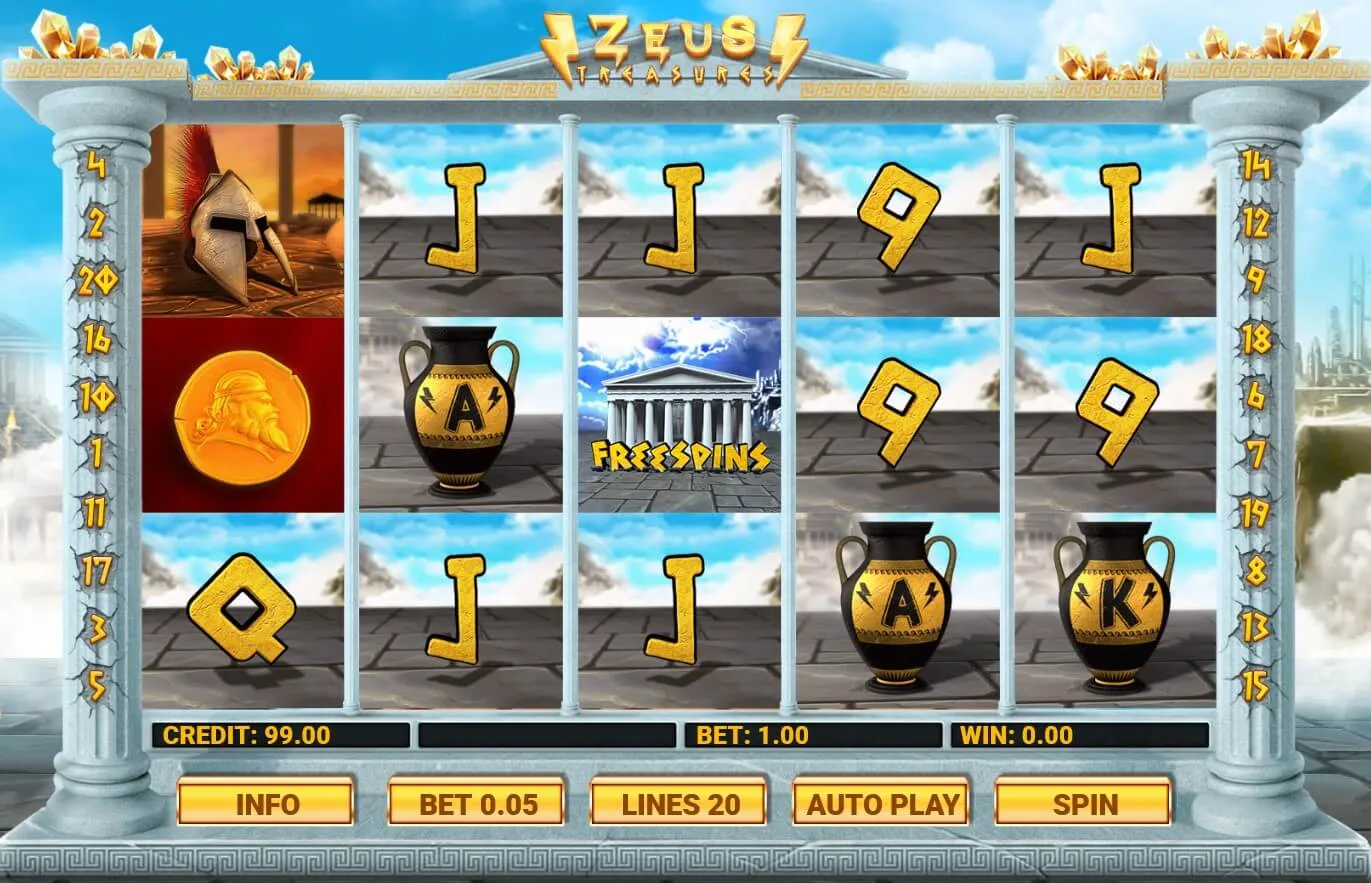
Recognise the two screen layers
A browser game sits inside a wider page. The website has navigation, article links and its own layout; the game has a title, menus and round controls. On the existing Coin Strike XXL page, an embedded frame opens content from another address. That distinction matters when you return after checking a message. Scrolling the page and tapping inside the game are different actions, even when both happen on one screen.
The home introduction describes desktop clicks and mobile taps for Weekend Dash. It also mentions an Info panel, a Speaker and Plus/Minus buttons. Treat those as a description to compare with the loaded game, rather than a universal map. Browser game controls can vary with the title and version in front of you. Read the displayed labels before relying on a position remembered from your last visit.
Find your place again
- Check the address of the surrounding page and the title inside the game.
- Wait for the game to finish loading before testing its buttons.
- Read the balance and current settings before starting a new action.
In October 2026, the useful question remains simple: what is the screen showing now? A familiar background does not prove that the previous session has resumed. The page may reload while the game starts afresh, or the game may still be completing an earlier action. Give the display time to settle. Repeated taps during uncertainty can make it harder to work out which action you actually requested.
Check the returning session
A changed balance does not explain its own cause. The game could have reset, an earlier round could have completed, or you could be viewing a different browser session. This site’s information does not establish a saving method for every embedded game. Avoid assuming that progress belongs to an account or that it will follow you to another device. Confirm what the game itself says about continuing or starting again.
| What you see | What to check next |
|---|---|
| Fresh balance | Look for a reset or new session notice. |
| Moving symbols | Wait and check whether a round is still active. |
| Changed layout | Read the labels and check screen orientation. |
- Check whether automatic play is running before leaving the frame.
- Locate the stop control before beginning a sequence.
- Wait for a completed result before recording a virtual balance.
- Do not clear browser data as a first attempt to recover progress.
Make the phone layout readable
A phone offers little spare room around an embedded game. First separate the browser’s own controls from the game buttons. If the frame is partly outside the visible area, scroll deliberately rather than dragging across an active control. Try a comfortable orientation while no round is running, then check whether the labels still fit. The aim is a readable screen, not a faster sequence of taps.
Zoom and orientation changes can affect the surrounding page differently from the game inside it. Test one adjustment at a time and look for the full help and stop buttons afterwards. If an important label remains cut off, pause rather than tapping where you think it should be. Browser game controls deserve the same attention as the rules. A large animation is not useful when the action you need is hidden beneath it.
For the meaning of space points and matching symbols, see the Weekend Dash rule article. If you are returning to a shared gathering, the invitation article explains how to leave room for different paces. A friend can wait while you read the screen; the next round is not a deadline.
Author’s opinion
I would treat a returning screen as a fresh reading task, even when the game looks familiar. Checking its name, current amount and stop control takes little effort and makes the next choice clearer. I would also avoid promises about saved progress unless the game explains them. A pause is useful when the frame, browser or balance raises a question. Comfortable play begins with knowing what your next tap will ask the screen to do.